



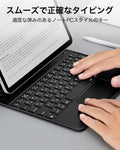
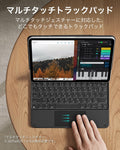
iPad Pro 11インチ (2024/2025) Rebound マグネットキーボードケース 360 - JP配列-ブラック
コード「25XMAS」で、全商品20%オフ! Code NYWT15
コード FINAL25で2点以上を25%OFF Code NYWT20
ピックアップの可用性をロードできませんでした
簡単に支払います


配信方法


資格のある注文で送料無料
30日間の返金保証
生涯カスタマーサポート
安全で簡単な支払い
対応機種: iPad Pro 11インチ(2025/2024)専用 。
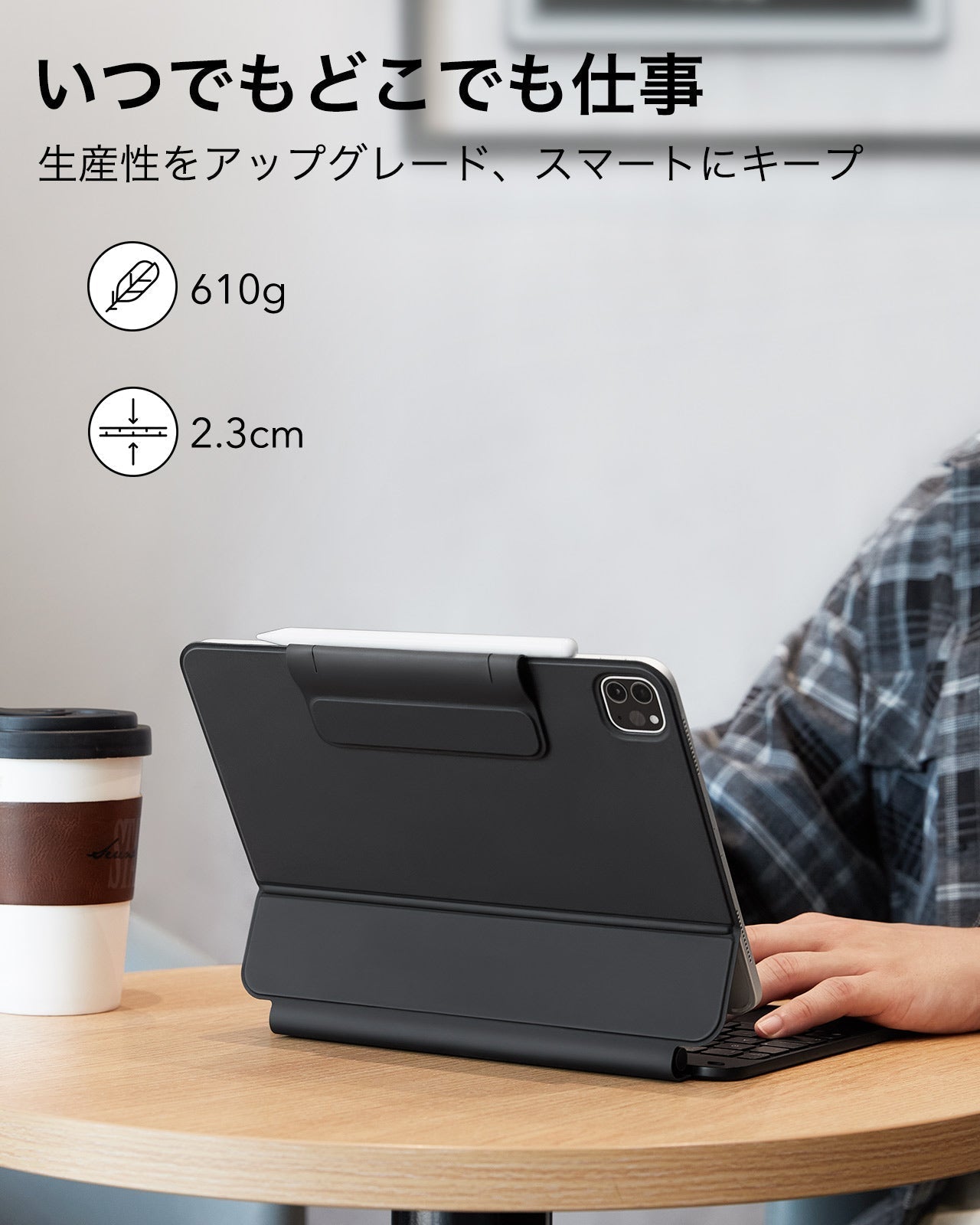
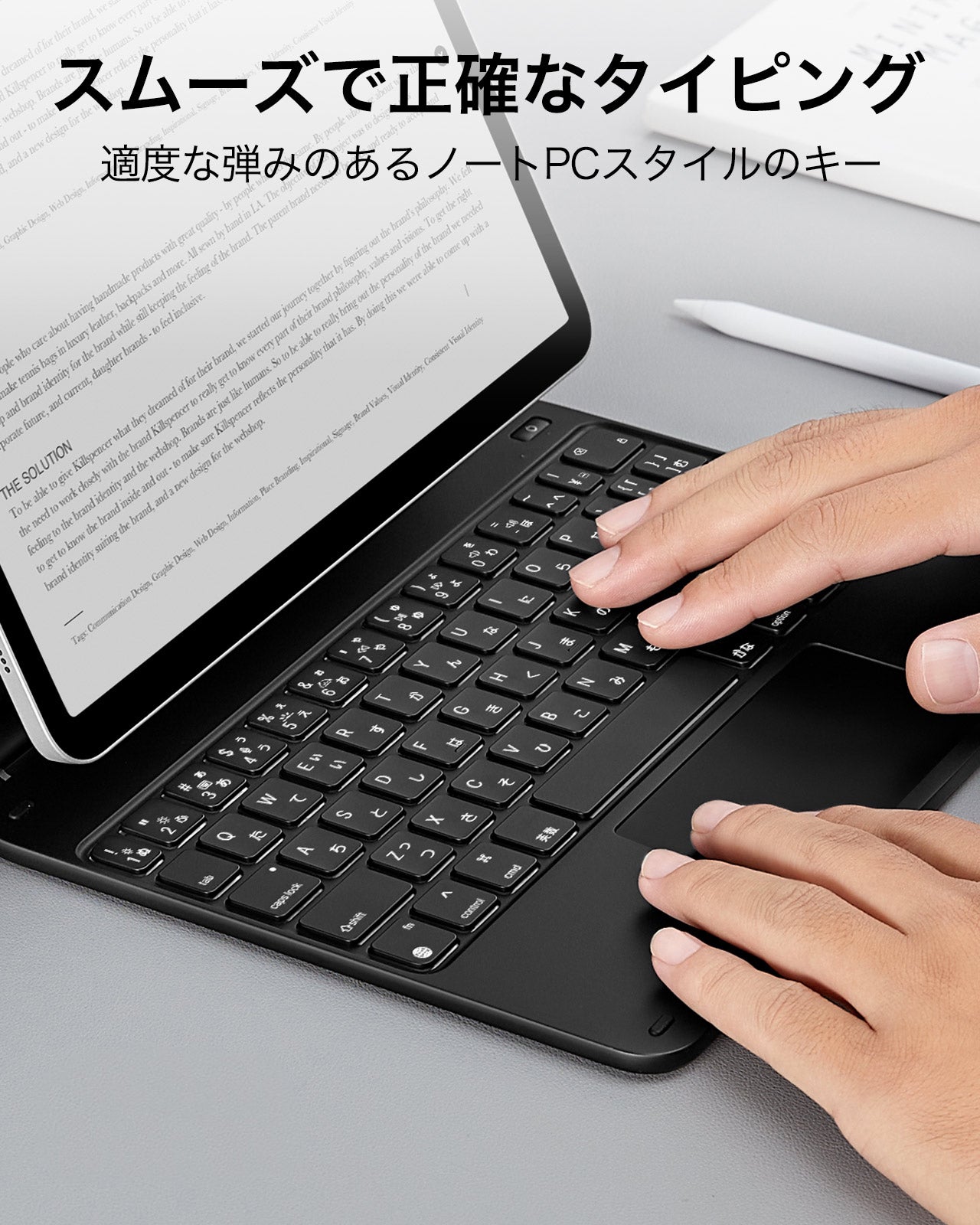
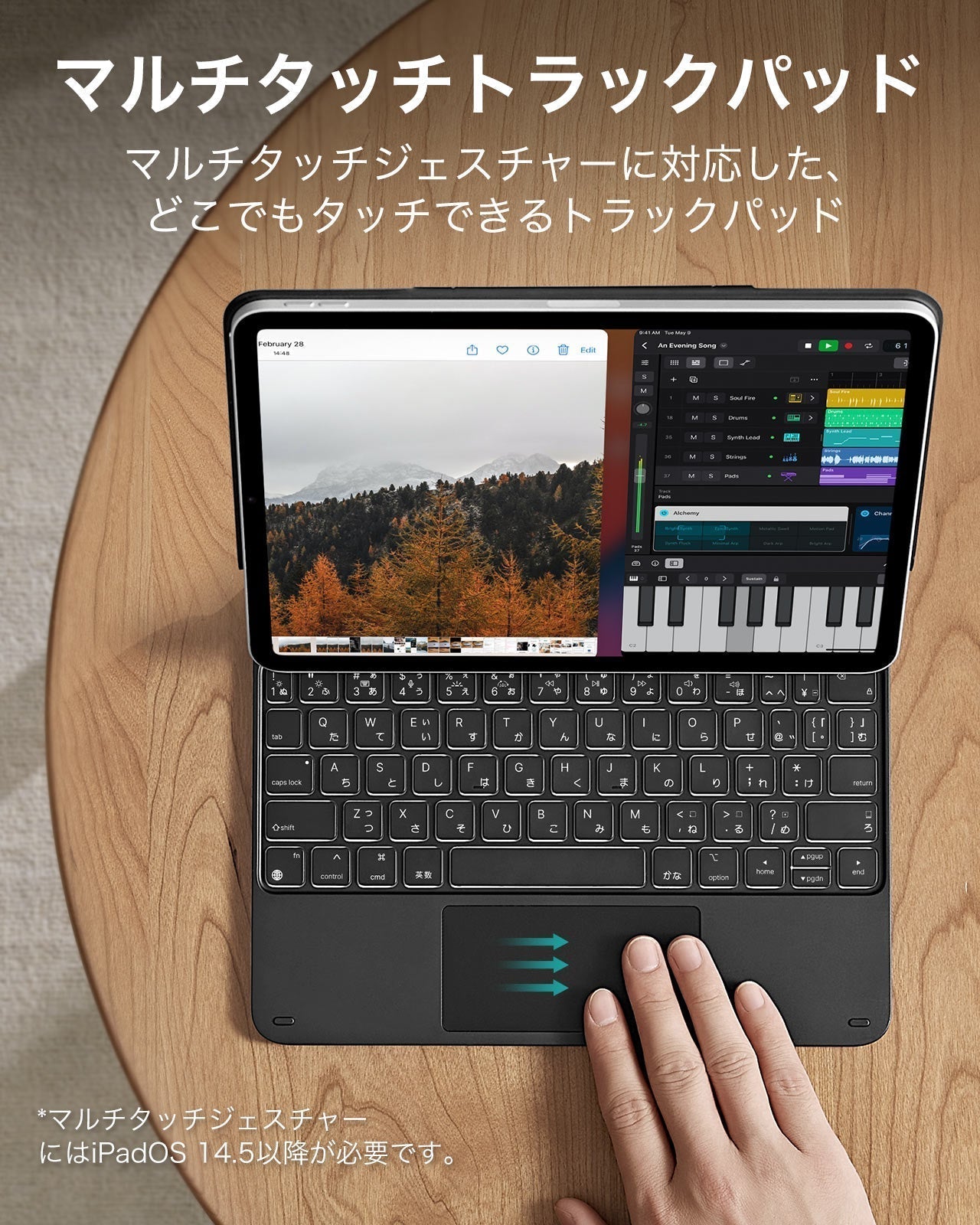
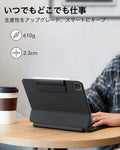
場所を選ばず作業: iPadをポータブルな生産性マシンに変身させ、いつでもどこでも仕事ができるようになります。
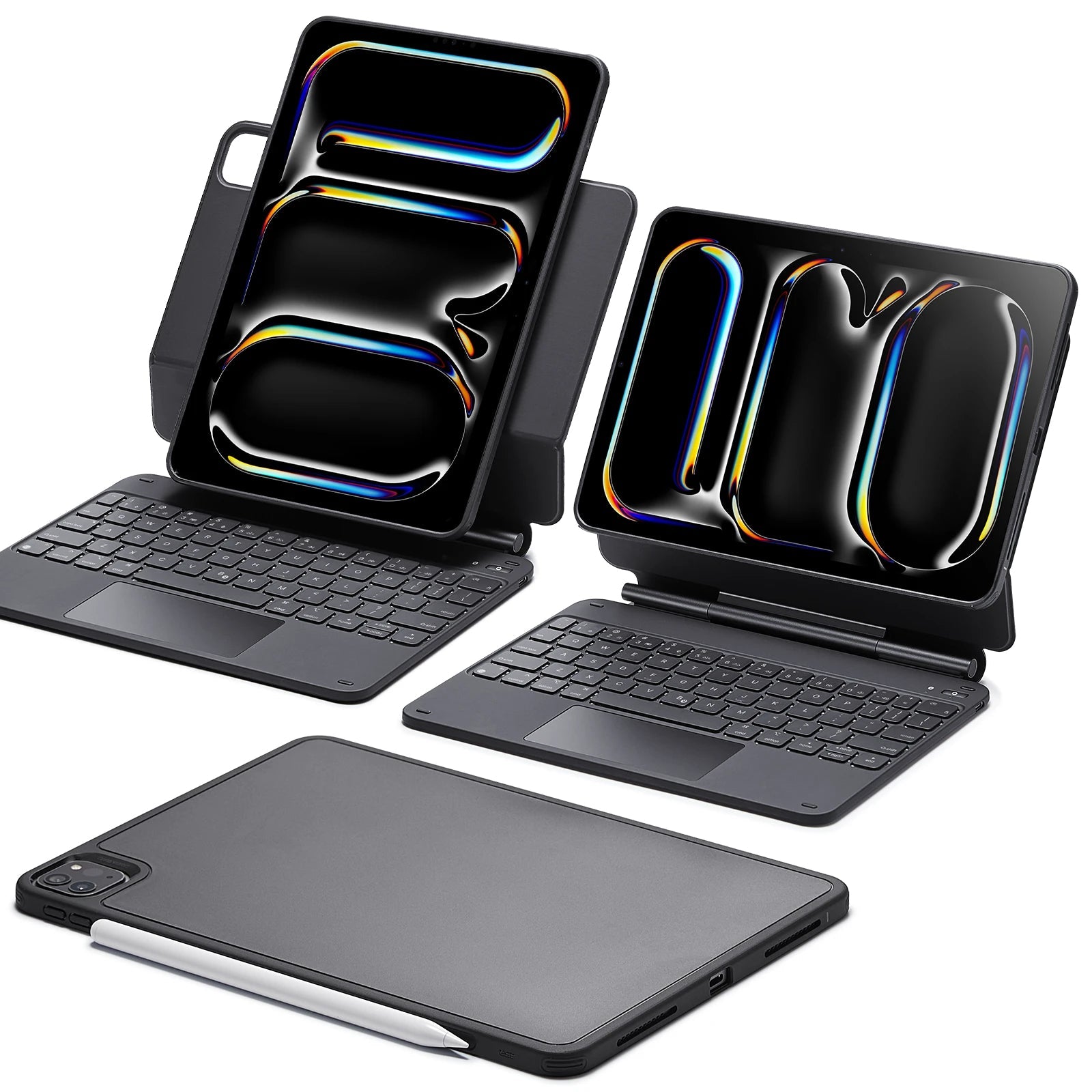
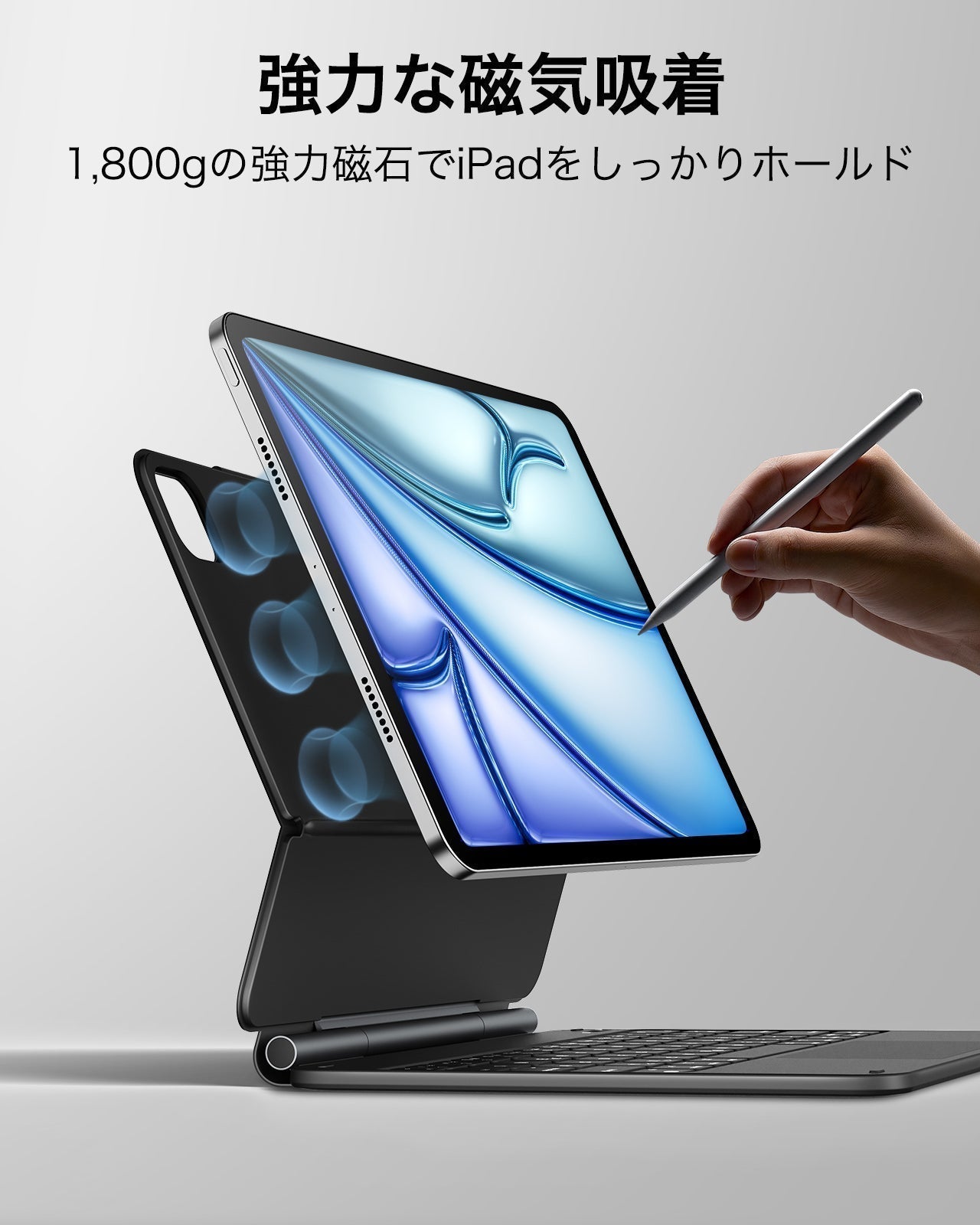
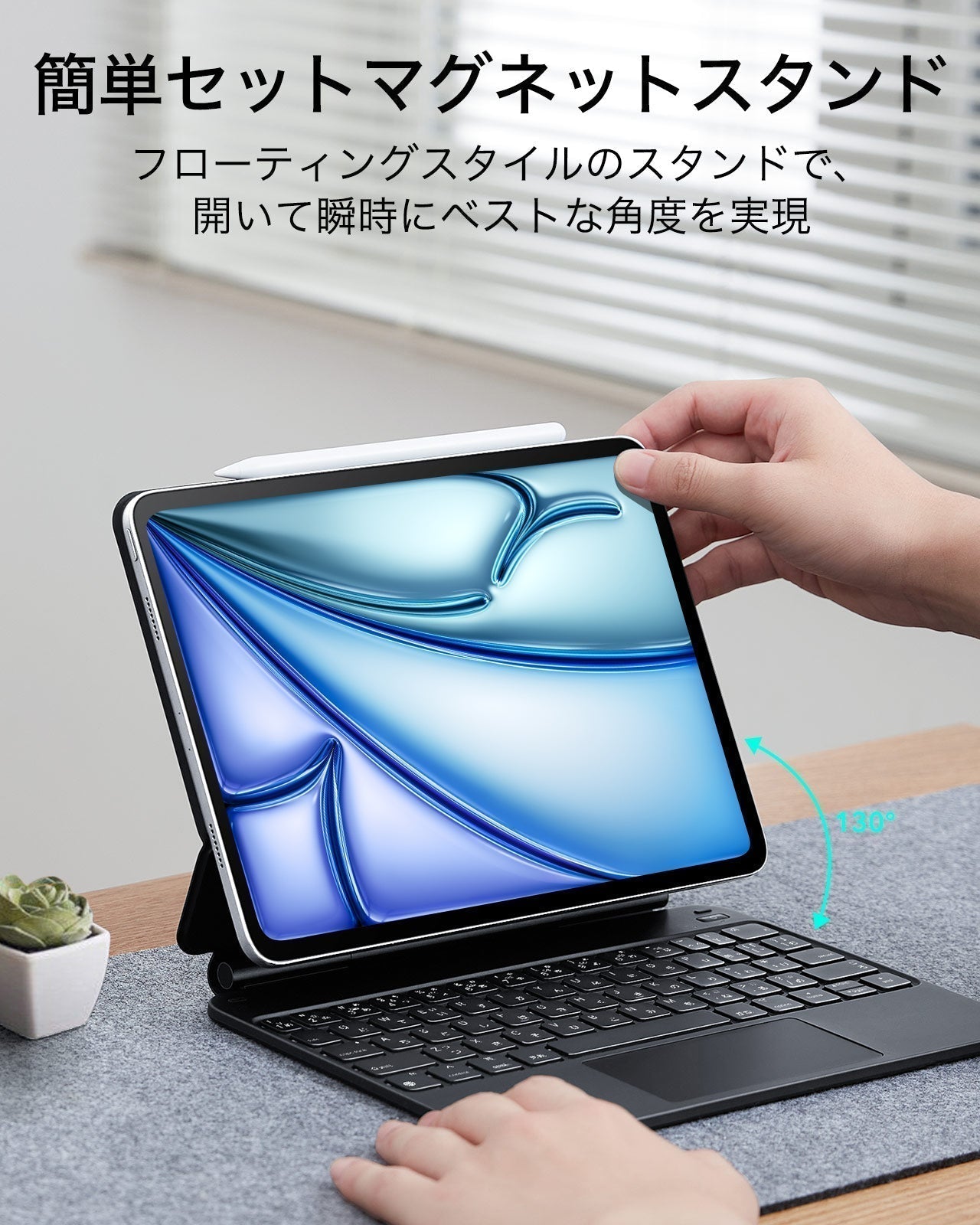
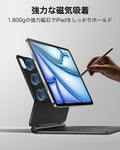
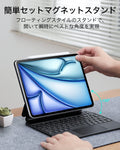
瞬間セット磁気スタンド: 超強力マグネットがケースとタブレットをシームレスに吸着固定し、タイピングや閲覧に最適な角度へ開き、スタンドどして使用できます。
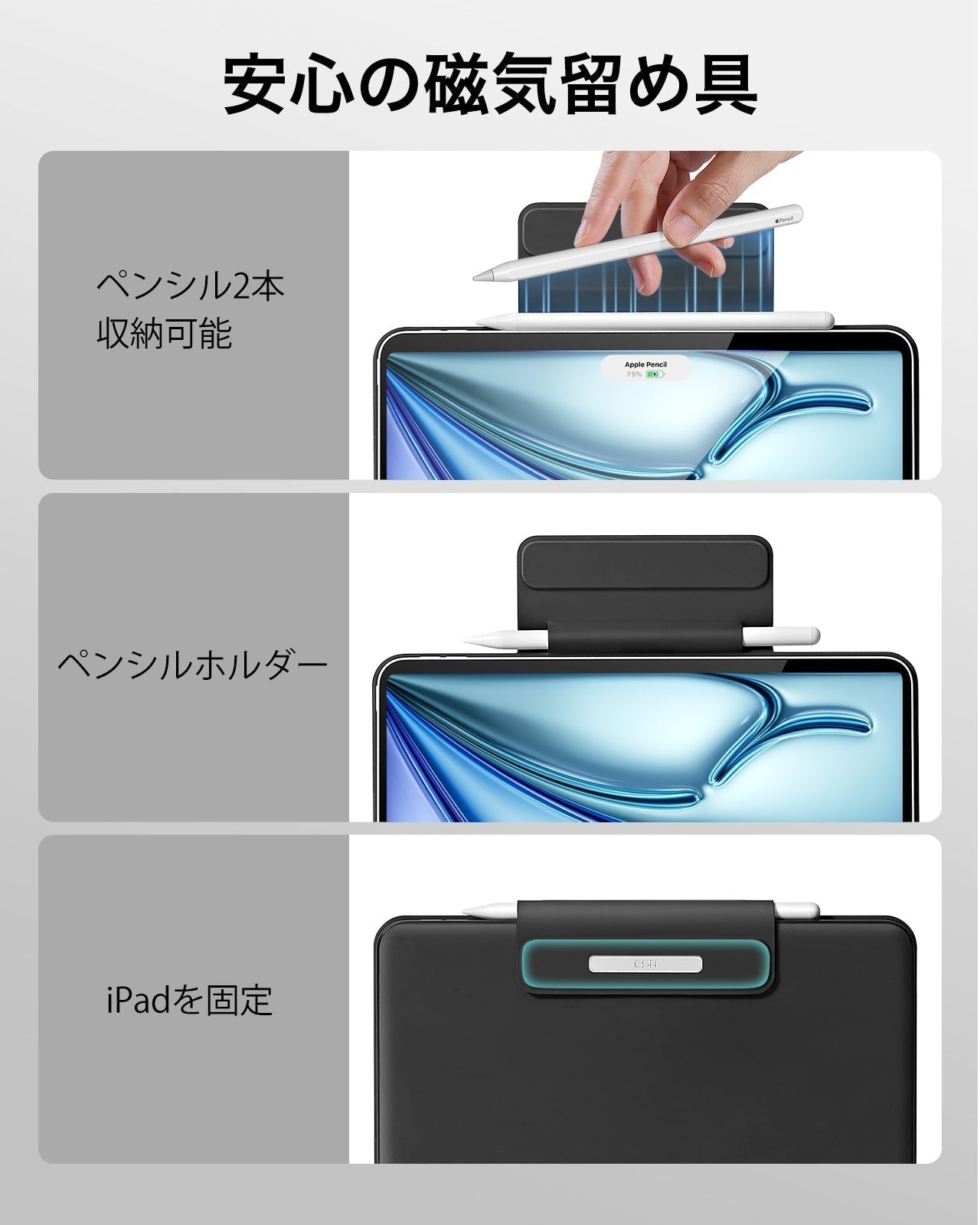
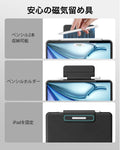
複数のビューモード: リフトアップモードや縦向きモードにできる取り外し可能な背面ケースは、デバイスとすぐに脱着ができ、完全な保護を提供します。
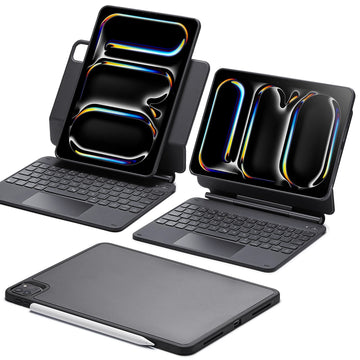
iPad Pro 11インチ (2024/2025) Rebound マグネットキーボードケース 360 - JP配列-ブラック
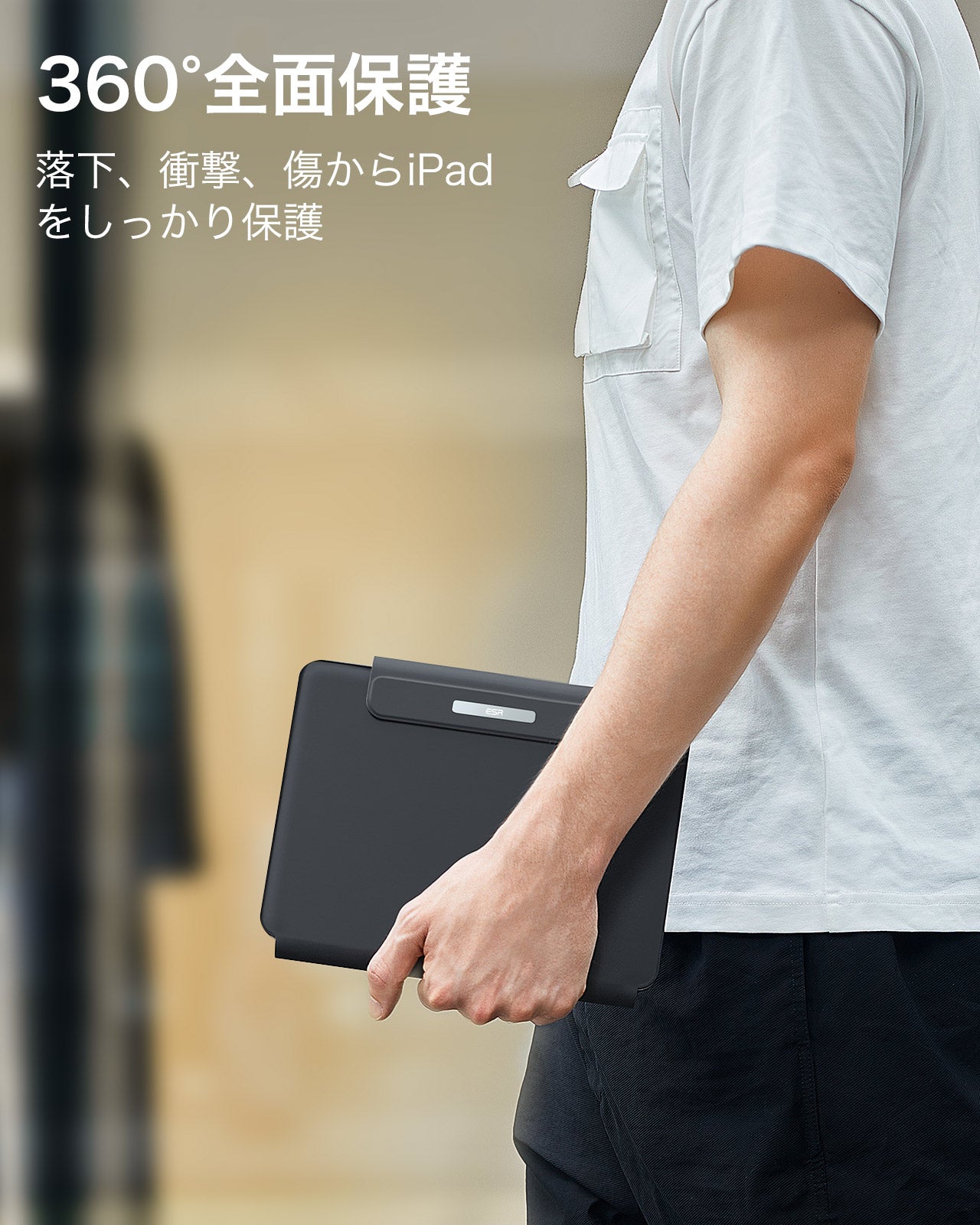
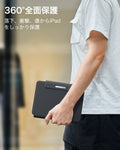
常に保護し、限りなくクリエイティブに


FAQ
Can I use the stand without the case that it comes with on?
Yes. You can attach a caseless iPad in standard landscape orientation to enjoy a comfortable angle to get stuff done at. To enjoy raised screen view or portrait orientation, you’ll need to use the included back case.
Does it have a back case for the ipad?
Yes. The detachable back case attaches magnetically to the back cover of the keyboard. It features a hard polycarbonate back, shock-absorbing flexible sides, and reinforced corners to keep your tablet safe with or without the keyboard.
If I have my own case on my ipad can I attach it the keyboard stand?
No. The keyboard case is designed to be used with a caseless iPad or the included magnetic back case. It cannot be used with an iPad with another case.
If I use it in portrait will it be as stable as in landscape?
Yes. The keyboard case supports landscape, portrait, and raised screen view. Strong magnets in the back cover line up with those in your iPad and back case to ensure a secure lock and a stable stand. When using your iPad in portrait or raised screen view modes, it must have the included back case on; only landscape mode supports use with a caseless iPad.
How do I connect the bluetooth?
First short press right/left option + B to put the keyboard into pairing mode. Once in pairing mode, go to Settings > Bluetooth > Other Devices and connect to “ESR Keyboard”. Check out the video for full instructions on how to connect your keyboard.
Can I change the brightness of the backlight?
Yes. Press right/left option + backlight key (in top left corner) to turn the backlight on or off and adjust the brightness level (low, medium, high).
My trackpad won’t work. Help!
When AssistiveTouch is enabled, it can cause the trackpad to become unresponsive. To fix this issue, disable AssistiveTouch by going to Settings > Accessibility > Touch > AssistiveTouch > Turn off “AssistiveTouch”.

Free shipping on qualified orders

30-Day Money-Back Guarantee

Lifetime Customer Support

Secure, Easy Payments
Secure, Easy Payments
Free shipping on qualified orders
30-Day Money-Back Guarantee
Lifetime Customer Support
Secure, Easy Payments
Free shipping on qualified orders

